Canva Instant PNG: 1-Click Page Downloads & Printing via Tampermonkey
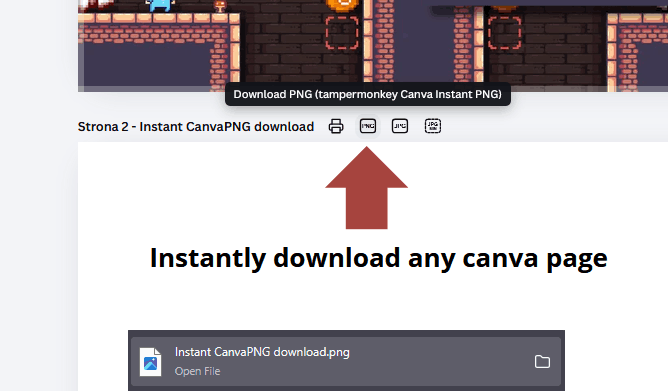
Supercharge your Canva workflow with Canva Instant PNG. Instead of clicking through endless export menus, you get 1-click Print, PNG, and JPG buttons right above every single page in your project.
This post is AI Generated!
The following content wasn't written by human, but instead it was "created" by an LLM (Large Language Model). Those AIs have "read" all the knowledge available on the Internet. However, their output is based on random chance and can be misleading, false, wrong, erroneous, and simply incorrect, all at the same time.
Why post this at all? Just give me the prompt! Here:
Create a Tampermonkey userscript called "Canva Instant PNG" for the Canva editor (https://www.canva.com/*) that adds a set of 4 single-click action buttons to each project page's toolbar:
- Print (printer icon) – tooltip on hover:
Print (tampermonkey Canva Instant PNG)- Download PNG (PNG icon) – tooltip on hover:
Download PNG (tampermonkey Canva Instant PNG)- Download JPG (JPG icon) – tooltip on hover:
Download JPG (tampermonkey Canva Instant PNG)- Download JPG (lower quality) (JPG MIN icon) – tooltip on hover:
Download JPG (lower quality) (tampermonkey Canva Instant PNG)Technical and architectural requirements:
- Page Toolbar Integration: Buttons must be injected directly into each page's control toolbar (
div[role="group"]), replicating the exact Canva DOM structure.wH2srQ > .xjp7ctv > buttonwith elevated z-index to prevent being obscured by Canva's background layers.- Precise Targeting: Exclude screen reader elements (
accessibility_dom) and outerrole="application"layers.- Mouse Event Protection: Apply
stopPropagation()onpointerdownandmousedownevents so Canva's internal editor engine does not block clicks or dismiss custom tooltips.- Custom Tooltip: Add a lightweight, floating Canva-styled tooltip displayed immediately on hover.
- DOM Observer Stability: Use a
MutationObserverwith self-mutation filtering, a 100ms debounce, and idempotency flags (data-tm-print-ready) to prevent duplicate button additions.- Single-Page Printing: Print the isolated target page within a hidden iframe (maintaining technical visibility for the Gecko/Firefox rendering engine), clearing artificial editor zoom scales and copying linked stylesheets and active
<canvas>elements.- Image Export (PNG / JPG): Use the
html-to-imagelibrary (included via@require), generating image files on the fly on the client side with a solid white background and optimized resolution (JPG full quality: 0.95, JPG lower quality: 0.50).- File Naming: If the page has a custom name entered in the page title field in the toolbar, use that name. If missing, name format must be
[ProjectName]_page_[nr]. The filename must be clean and independent of quality (no compression-related tags).
The generated posts usually go through suggestions, feedback, iterations. This makes for a long AI chat session, that is full of repetitions, hot garbage, and hallucinations. I go through that and post the final output, that is hopefully better than the first output.
Instant 1-Click Exports in Canva
If you work on multi-page designs in Canva, this userscript removes the repetitive export menus. Here is what you get:
Skip All the Menus
No more clicking Share → Download → Format → Select Pages → Uncheck All → Find Page → Done → Download. Click one button above the page you're looking at, and the image is in your Downloads folder.
4 Dedicated Action Buttons
Every page gets its own dedicated controls right in the toolbar: Print, Download PNG, Download JPG, and Download JPG (Low Quality).
Direct Single-Page Printing
Send just the active slide straight to your browser's print dialog. It strips out Canva's editor UI, auto-detects page orientation, and resets zoom scaling for clean printing.
Intelligent File Naming
If you named your page (e.g. Pricing Table), the file is saved as Pricing Table.png. If not, it uses [ProjectName]_page_[nr].png. No clutter, no manual renaming.
Native Look & Feel
Crafted to blend into Canva with native-styled hover tooltips and responsive click feedback.
How to Install & Script Code
You can set this up using Tampermonkey. Here are the step-by-step instructions:
- Install Tampermonkey: Add the free Tampermonkey extension to your browser (Chrome, Firefox, Edge, Brave, or Safari).
- Add permissions: Add permissions to Tampermonkey extension to read and write all websites - it may require developer mode in chrome.
- Create a Script: Click the Tampermonkey icon in your browser bar, select Create a new script..., click Copy Script below, and paste the code into the editor.
- Save & Open Canva: Save the script (Ctrl+S / Cmd+S), then open any project on Canva. The 4 action buttons will appear above every page.
// ==UserScript==
// @name         Canva Instant PNG
// @namespace    https://tampermonkey.net/
// @version      1.4
// @description  Allows you to print and download any Canva page with a single click (PNG, JPG).
// @author       gemini3.8 prompted by Tymski
// @match        https://www.canva.com/*
// @require      https://cdnjs.cloudflare.com/ajax/libs/html-to-image/1.11.11/html-to-image.min.js
// @grant        none
// @run-at       document-idle
// ==/UserScript==

(function () {
    'use strict';

    const ATTR_FLAG = 'data-tm-print-ready';

    // --- SVG ICONS ---
    const ICON_PRINT = `
        <svg viewBox="0 0 24 24" width="18" height="18" fill="none" stroke="currentColor" stroke-width="2" stroke-linecap="round" stroke-linejoin="round" style="display:block;pointer-events:none;">
            <polyline points="6 9 6 2 18 2 18 9"></polyline>
            <path d="M6 18H4a2 2 0 0 1-2-2v-5a2 2 0 0 1 2-2h16a2 2 0 0 1 2 2v5a2 2 0 0 1-2 2h-2"></path>
            <rect x="6" y="14" width="12" height="8"></rect>
        </svg>
    `;

    const ICON_PNG = `
        <svg viewBox="0 0 24 24" width="20" height="20" fill="none" stroke="currentColor" stroke-width="1.8" stroke-linecap="round" stroke-linejoin="round" style="display:block;pointer-events:none;">
            <rect x="2" y="3" width="20" height="18" rx="3.5"></rect>
            <text x="12" y="15" font-size="7.5" font-weight="bold" fill="currentColor" stroke="none" text-anchor="middle" font-family="-apple-system, sans-serif">PNG</text>
        </svg>
    `;

    const ICON_JPG = `
        <svg viewBox="0 0 24 24" width="20" height="20" fill="none" stroke="currentColor" stroke-width="1.8" stroke-linecap="round" stroke-linejoin="round" style="display:block;pointer-events:none;">
            <rect x="2" y="3" width="20" height="18" rx="3.5"></rect>
            <text x="12" y="15" font-size="7.5" font-weight="bold" fill="currentColor" stroke="none" text-anchor="middle" font-family="-apple-system, sans-serif">JPG</text>
        </svg>
    `;

    const ICON_JPG_LOW = `
        <svg viewBox="0 0 24 24" width="20" height="20" fill="none" stroke="currentColor" stroke-width="1.8" stroke-linecap="round" stroke-linejoin="round" style="display:block;pointer-events:none;">
            <rect x="2" y="3" width="20" height="18" rx="3.5" stroke-dasharray="3 2"></rect>
            <text x="12" y="12.5" font-size="7" font-weight="bold" fill="currentColor" stroke="none" text-anchor="middle" font-family="-apple-system, sans-serif">JPG</text>
            <text x="12" y="18" font-size="5" font-weight="bold" fill="currentColor" stroke="none" text-anchor="middle" font-family="-apple-system, sans-serif">MIN</text>
        </svg>
    `;

    // Global tooltip matching Canva's native style
    let tooltipEl = document.getElementById('tm-canva-tooltip');
    if (!tooltipEl) {
        tooltipEl = document.createElement('div');
        tooltipEl.id = 'tm-canva-tooltip';
        tooltipEl.style.cssText = `
            position: fixed;
            background: rgba(17, 19, 24, 0.95);
            color: #ffffff;
            padding: 6px 10px;
            border-radius: 6px;
            font-size: 12px;
            font-family: -apple-system, BlinkMacSystemFont, "Canva Sans", "Segoe UI", Roboto, sans-serif;
            font-weight: 500;
            pointer-events: none;
            z-index: 9999999;
            white-space: nowrap;
            box-shadow: 0 4px 14px rgba(0,0,0,0.3);
            display: none;
            opacity: 0;
            transition: opacity 0.12s ease-in-out;
        `;
        document.body.appendChild(tooltipEl);
    }

    /**
     * Safely sanitizes disallowed characters in filenames
     */
    function sanitizeFilename(name) {
        return name
            .replace(/[/\\?%*:|"<>]/g, '-')
            .replace(/\s+/g, ' ')
            .trim();
    }

    /**
     * Resolves page name from toolbar input or generates a default
     */
    function resolvePageName(toolbar, targetPage) {
        // 1. Check if the page has a title input field
        const titleInput = toolbar.querySelector('input[aria-label*="title" i], input[aria-label*="tytuł" i]');
        if (titleInput && titleInput.value && titleInput.value.trim().length > 0) {
            return sanitizeFilename(titleInput.value.trim());
        }

        // 2. Fallback: check text preview element
        const titleDiv = toolbar.querySelector('.MCFsfg .noenSA');
        if (titleDiv && titleDiv.textContent && titleDiv.textContent.trim().length > 0) {
            return sanitizeFilename(titleDiv.textContent.trim());
        }

        // 3. Fallback name: [Project]_page_[num]
        const pageId = targetPage ? targetPage.getAttribute('data-page-id') : '0';
        const pageNum = (parseInt(pageId, 10) || 0) + 1;
        const baseProjectName = (document.title.split('–')[0] || document.title.split('-')[0] || 'canva-design').trim();
        return sanitizeFilename(`${baseProjectName}_page_${pageNum}`);
    }

    /**
     * Finds the [data-page-id] container associated with the toolbar
     */
    function findTargetPage(toolbar) {
        let parent = toolbar.parentElement;
        for (let i = 0; i < 6 && parent; i++) {
            const page = parent.querySelector('[data-page-id]');
            if (page) return page;
            parent = parent.parentElement;
        }

        const pages = Array.from(document.querySelectorAll('[data-page-id]'));
        if (pages.length === 0) return null;
        if (pages.length === 1) return pages[0];

        const toolbarRect = toolbar.getBoundingClientRect();
        let closest = pages[0];
        let minDiff = Infinity;
        for (const p of pages) {
            const diff = Math.abs(p.getBoundingClientRect().top - toolbarRect.bottom);
            if (diff < minDiff) {
                minDiff = diff;
                closest = p;
            }
        }
        return closest;
    }

    /**
     * Prints the selected page
     */
    function printPageElement(toolbar, pageEl) {
        if (!pageEl) {
            alert('Could not find the content of the selected page to print.');
            return;
        }

        const pageName = resolvePageName(toolbar, pageEl);

        let width = 1200;
        let height = 450;
        const titleMatch = document.title.match(/(\d+)\s*[×x–-]\s*(\d+)\s*px/i);
        if (titleMatch) {
            width = parseInt(titleMatch[1], 10);
            height = parseInt(titleMatch[2], 10);
        } else {
            width = pageEl.offsetWidth || 1200;
            height = pageEl.offsetHeight || 450;
        }

        const isLandscape = width >= height;
        const clone = pageEl.cloneNode(true);

        clone.style.width = width + 'px';
        clone.style.height = height + 'px';
        clone.style.transform = 'none';
        clone.style.margin = '0';

        clone.querySelectorAll('*').forEach(el => {
            if (el.style && el.style.transform && el.style.transform.includes('scale')) {
                const w = parseFloat(el.style.width);
                const h = parseFloat(el.style.height);
                if (w === width || h === height) {
                    el.style.transform = 'none';
                }
            }
        });

        // Copy canvas states
        const origCanvases = pageEl.querySelectorAll('canvas');
        const cloneCanvases = clone.querySelectorAll('canvas');
        origCanvases.forEach((orig, idx) => {
            const dest = cloneCanvases[idx];
            if (dest) {
                dest.width = orig.width;
                dest.height = orig.height;
                const ctx = dest.getContext('2d');
                if (ctx) ctx.drawImage(orig, 0, 0);
            }
        });

        let stylesHtml = '';
        document.querySelectorAll('link[rel="stylesheet"], style').forEach(el => {
            stylesHtml += el.outerHTML;
        });

        const iframe = document.createElement('iframe');
        iframe.style.cssText = 'position:fixed;bottom:0;right:0;width:10px;height:10px;border:none;opacity:0.01;pointer-events:none;z-index:99999;';
        document.body.appendChild(iframe);

        const doc = iframe.contentWindow.document;
        doc.open();
        doc.write(`
            <!DOCTYPE html>
            <html class="${document.documentElement.className}">
            <head>
                <meta charset="utf-8">
                <title>${pageName}</title>
                ${stylesHtml}
                <style>
                    @page {
                        size: ${isLandscape ? 'landscape' : 'portrait'};
                        margin: 0;
                    }
                    *, *::before, *::after {
                        -webkit-print-color-adjust: exact !important;
                        print-color-adjust: exact !important;
                    }
                    html, body {
                        margin: 0 !important;
                        padding: 0 !important;
                        background: #ffffff !important;
                        width: 100% !important;
                        height: 100% !important;
                        overflow: hidden !important;
                        display: flex !important;
                        align-items: center !important;
                        justify-content: center !important;
                    }
                    .tm-print-container {
                        position: relative !important;
                        width: ${width}px !important;
                        height: ${height}px !important;
                        overflow: hidden !important;
                        background: #ffffff !important;
                        box-sizing: border-box !important;
                    }
                    [role="application"] {
                        display: none !important;
                    }
                </style>
            </head>
            <body class="${document.body.className}">
                <div class="tm-print-container">
                    ${clone.outerHTML}
                </div>
            </body>
            </html>
        `);
        doc.close();

        let printed = false;
        const triggerPrint = () => {
            if (printed) return;
            printed = true;
            try {
                iframe.contentWindow.focus();
                iframe.contentWindow.print();
            } catch (err) {
                console.error('[Canva Print] Print error:', err);
            } finally {
                setTimeout(() => iframe.remove(), 3000);
            }
        };

        const images = Array.from(doc.images);
        if (images.length === 0) {
            setTimeout(triggerPrint, 350);
        } else {
            let loaded = 0;
            const onImgFinish = () => {
                loaded++;
                if (loaded >= images.length) setTimeout(triggerPrint, 250);
            };
            images.forEach(img => {
                if (img.complete) onImgFinish();
                else {
                    img.onload = onImgFinish;
                    img.onerror = onImgFinish;
                }
            });
            setTimeout(triggerPrint, 2500);
        }
    }

    /**
     * Exports target page to PNG or JPG file
     */
    async function exportPageElement(toolbar, format, quality) {
        const targetPage = findTargetPage(toolbar);
        if (!targetPage) {
            alert('Could not find the content of the selected page to download.');
            return;
        }

        const h2i = window.htmlToImage || (typeof htmlToImage !== 'undefined' ? htmlToImage : null);
        if (!h2i) {
            alert('Error: html-to-image library is not loaded.');
            return;
        }

        const designNode = targetPage.querySelector('div[lang]') ||
                           targetPage.querySelector('[aria-hidden="true"] > div') ||
                           targetPage;

        let width = 1200;
        let height = 450;
        const titleMatch = document.title.match(/(\d+)\s*[×x–-]\s*(\d+)\s*px/i);
        if (titleMatch) {
            width = parseInt(titleMatch[1], 10);
            height = parseInt(titleMatch[2], 10);
        } else {
            width = designNode.offsetWidth || 1200;
            height = designNode.offsetHeight || 450;
        }

        const baseName = resolvePageName(toolbar, targetPage);
        const filename = `${baseName}.${format}`;

        const maxDim = Math.max(width, height);
        const pixelRatio = maxDim > 2500 ? 1 : (quality < 0.8 ? 1 : 1.5);

        const options = {
            quality: quality,
            pixelRatio: pixelRatio,
            skipFonts: true,
            backgroundColor: '#ffffff',
            filter: (node) => {
                if (node.getAttribute && node.getAttribute('role') === 'application') return false;
                if (node.classList && (node.classList.contains('tm-canva-action-wrapper') || node.classList.contains('tm-canva-btn'))) return false;
                return true;
            }
        };

        try {
            let dataUrl;
            if (format === 'png') {
                dataUrl = await h2i.toPng(designNode, options);
            } else {
                dataUrl = await h2i.toJpeg(designNode, options);
            }

            const link = document.createElement('a');
            link.download = filename;
            link.href = dataUrl;
            document.body.appendChild(link);
            link.click();
            setTimeout(() => link.remove(), 200);
        } catch (err) {
            console.error('[Canva Export] Image generation error:', err);
            alert('An error occurred while generating the image: ' + (err.message || err));
        }
    }

    /**
     * Action button factory with Canva toolbar integration
     */
    function createActionButton(sampleBtn, title, iconSvg, onClickHandler) {
        const outerWrapper = document.createElement('div');
        outerWrapper.className = 'wH2srQ tm-canva-action-wrapper';
        outerWrapper.style.cssText = 'position: relative !important; z-index: 100 !important; display: inline-flex !important; align-items: center !important;';

        const innerWrapper = document.createElement('div');
        innerWrapper.className = 'xjp7ctv';
        innerWrapper.style.cssText = 'position: relative !important; z-index: 100 !important; display: inline-flex !important;';

        const button = document.createElement('button');
        button.type = 'button';
        button.className = 'tm-canva-btn' + (sampleBtn ? ' ' + sampleBtn.className : '');
        button.title = title;
        button.setAttribute('aria-label', title);

        button.style.cssText = `
            position: relative !important;
            z-index: 101 !important;
            cursor: pointer !important;
            pointer-events: auto !important;
            display: inline-flex !important;
            align-items: center !important;
            justify-content: center !important;
            transition: transform 0.1s ease, opacity 0.15s ease;
        `;

        button.innerHTML = `
            <span style="display:inline-flex;align-items:center;justify-content:center;pointer-events:none;">
                <span>${iconSvg}</span>
            </span>
        `;

        button.addEventListener('mouseenter', () => {
            const rect = button.getBoundingClientRect();
            tooltipEl.textContent = title;
            tooltipEl.style.display = 'block';
            tooltipEl.style.left = `${rect.left + rect.width / 2 - tooltipEl.offsetWidth / 2}px`;
            tooltipEl.style.top = `${rect.top - tooltipEl.offsetHeight - 8}px`;
            tooltipEl.style.opacity = '1';
        });

        button.addEventListener('mouseleave', () => {
            tooltipEl.style.opacity = '0';
            tooltipEl.style.display = 'none';
        });

        button.addEventListener('pointerdown', (e) => e.stopPropagation());
        button.addEventListener('mousedown', (e) => e.stopPropagation());

        button.addEventListener('click', async (e) => {
            e.preventDefault();
            e.stopPropagation();

            button.style.transform = 'scale(0.92)';
            button.style.opacity = '0.4';
            button.style.pointerEvents = 'none';

            try {
                await onClickHandler();
            } finally {
                button.style.transform = 'scale(1)';
                button.style.opacity = '1';
                button.style.pointerEvents = 'auto';
            }
        });

        innerWrapper.appendChild(button);
        outerWrapper.appendChild(innerWrapper);
        return outerWrapper;
    }

    /**
     * Injects action buttons into each page toolbar
     */
    function injectActionButtons() {
        const candidateGroups = document.querySelectorAll('div[role="group"]');

        candidateGroups.forEach(toolbar => {
            if (toolbar.closest('[role="application"]') || (toolbar.id && toolbar.id.startsWith('accessibility_dom'))) {
                return;
            }

            const hasPageButtons = toolbar.querySelector('button[aria-label*="Lock" i], button[aria-label*="Zablokuj" i], button[aria-label*="Duplicate" i], button[aria-label*="Powiel" i], button[aria-label*="Add page" i], button[aria-label*="Dodaj stronę" i]');
            if (!hasPageButtons) return;

            if (toolbar.getAttribute(ATTR_FLAG) === 'true' || toolbar.querySelector('.tm-canva-btn')) {
                return;
            }
            toolbar.setAttribute(ATTR_FLAG, 'true');

            const sampleBtn = toolbar.querySelector('button');

            const printBtn = createActionButton(
                sampleBtn,
                'Print (tampermonkey Canva Instant PNG)',
                ICON_PRINT,
                () => {
                    const targetPage = findTargetPage(toolbar);
                    printPageElement(toolbar, targetPage);
                }
            );

            const pngBtn = createActionButton(
                sampleBtn,
                'Download PNG (tampermonkey Canva Instant PNG)',
                ICON_PNG,
                () => exportPageElement(toolbar, 'png', 1.0)
            );

            const jpgBtn = createActionButton(
                sampleBtn,
                'Download JPG (tampermonkey Canva Instant PNG)',
                ICON_JPG,
                () => exportPageElement(toolbar, 'jpg', 0.95)
            );

            const jpgLowBtn = createActionButton(
                sampleBtn,
                'Download JPG (low quality) (tampermonkey Canva Instant PNG)',
                ICON_JPG_LOW,
                () => exportPageElement(toolbar, 'jpg', 0.50)
            );

            // Insert buttons next to the page title or at position index 1
            const insertRef = toolbar.children[1] || null;
            toolbar.insertBefore(jpgLowBtn, insertRef);
            toolbar.insertBefore(jpgBtn, jpgLowBtn);
            toolbar.insertBefore(pngBtn, jpgBtn);
            toolbar.insertBefore(printBtn, pngBtn);
        });
    }

    // Debounce 100 ms
    let debounceTimeout = null;
    function debouncedInject() {
        if (debounceTimeout) clearTimeout(debounceTimeout);
        debounceTimeout = setTimeout(() => {
            injectActionButtons();
        }, 100);
    }

    const observer = new MutationObserver((mutations) => {
        const isSelf = mutations.every(m =>
            Array.from(m.addedNodes).some(n =>
                n.classList && (n.classList.contains('tm-canva-action-wrapper') || n.classList.contains('tm-canva-btn'))
            )
        );
        if (!isSelf) {
            debouncedInject();
        }
    });

    observer.observe(document.body, {
        childList: true,
        subtree: true
    });

    debouncedInject();
})();
The Problem It Solves: Why Canva's Default Export Slows You Down
Canva is a great design tool, but its export pipeline is designed around batch-downloading entire projects rather than quick, agile single-page exports. When you need to grab just one specific page, the default workflow is exhausting:
- Click the Share button in the top navigation bar.
- Click Download in the menu.
- Check that the file type dropdown is set to PNG or JPG.
- Click the Select pages dropdown.
- Uncheck the All pages checkbox.
- Scroll through the list of thumbnail pages to locate the page you want.
- Check the box for that specific page.
- Click Done to close the page selector.
- Click Download.
- Wait for Canva's servers to render the file and prompt the browser download.
If you're iterating on page 14 of a presentation, you have to repeat this 10-step sequence every single time you want to review the slide or send it for feedback. Printing is even worse: Canva requires exporting a multi-page PDF, opening it in an external PDF reader, and manually choosing which page to print. Canva Instant PNG reduces all of that down to a single click directly above the page you're working on.
The script doesn't work? How to fix it.
Canva is a web application that rolls out frontend updates frequently. These updates occasionally change internal class names (like .wH2srQ or .xjp7ctv) or rearrange the page toolbar container.
If the buttons ever stop appearing after a Canva update, you can easily fix it yourself using any modern AI assistant (such as Google Gemini, Claude, or ChatGPT):
- Open your project in Canva, right-click the toolbar above any page, and choose Inspect (F12).
- Copy the HTML of the page toolbar container (the
div[role="group"]containing the page buttons). - Copy the userscript code from the box above and the original prompt from the collapsible prompt section at the top of this article.
- Paste them into your AI tool and give it this instruction:
"Canva updated its interface and the Canva Instant PNG Tampermonkey script stopped injecting the buttons. Here is the existing userscript and here is the current HTML snippet of the page toolbar from the browser inspector: [paste toolbar HTML]. Please update the container selectors, classes, and insertion points in the script so that the 4 buttons inject properly into each page toolbar again."
- Paste the AI's updated script back into Tampermonkey and save. Your single-click buttons will be working again.